Create Application
In KubeRocketCI, all software components, such as applications, libraries, Terraform infrastructures, and automated tests, are referred to as codebases. KubeRocketCI provides flexible methods for scaffolding these components.
This guide will walk you through the process of creating a Go application using the Gin framework. The Marketplace will be used to streamline the application creation process.
Application Onboarding
To create the first application, complete the instructions below:
-
In the KubeRocketCI, navigate to Projects.
-
In the top right corner of the screen, click + Create project.
-
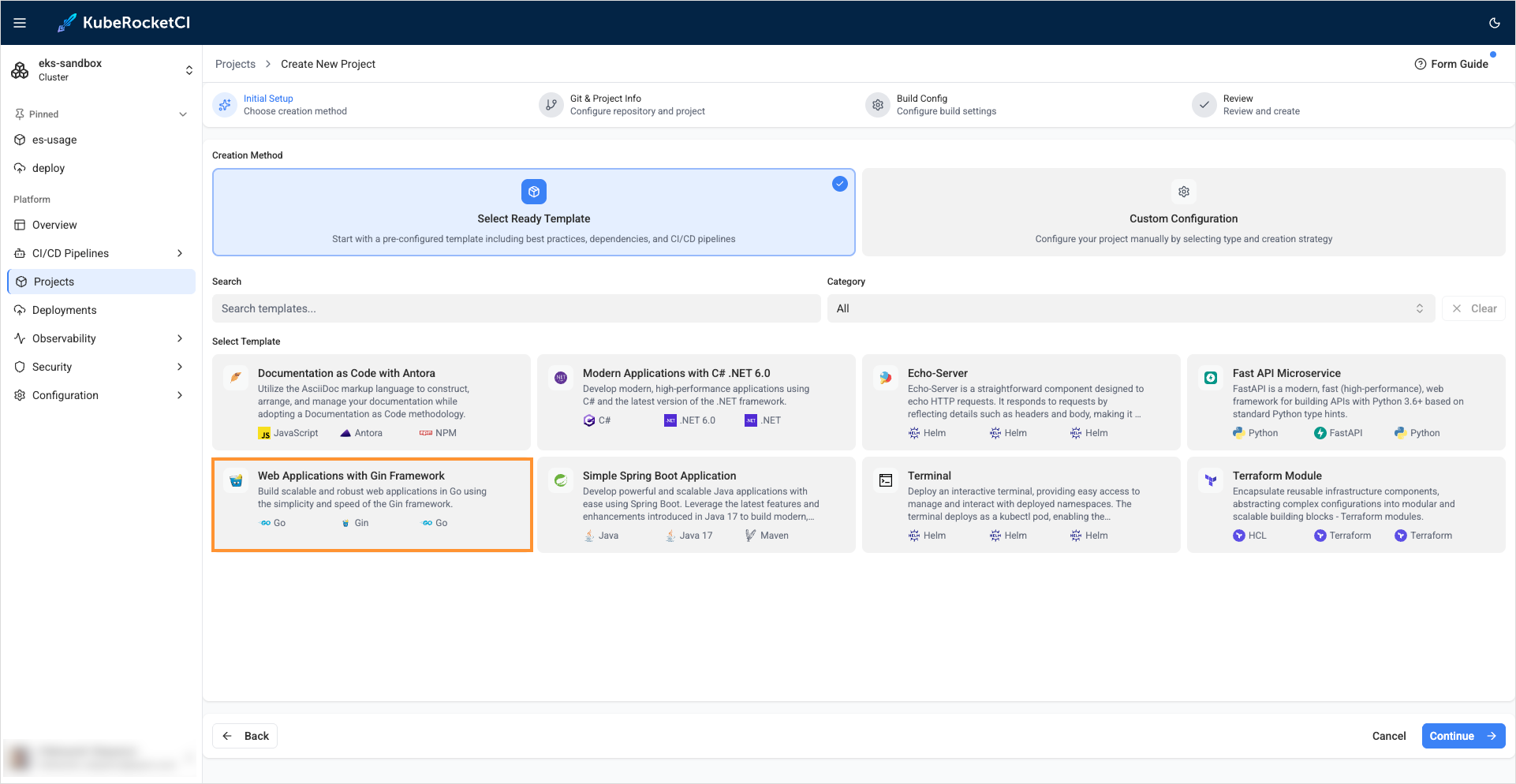
In the Select Ready Template section, select Web Applications with Gin Framework and click Continue ->:
-
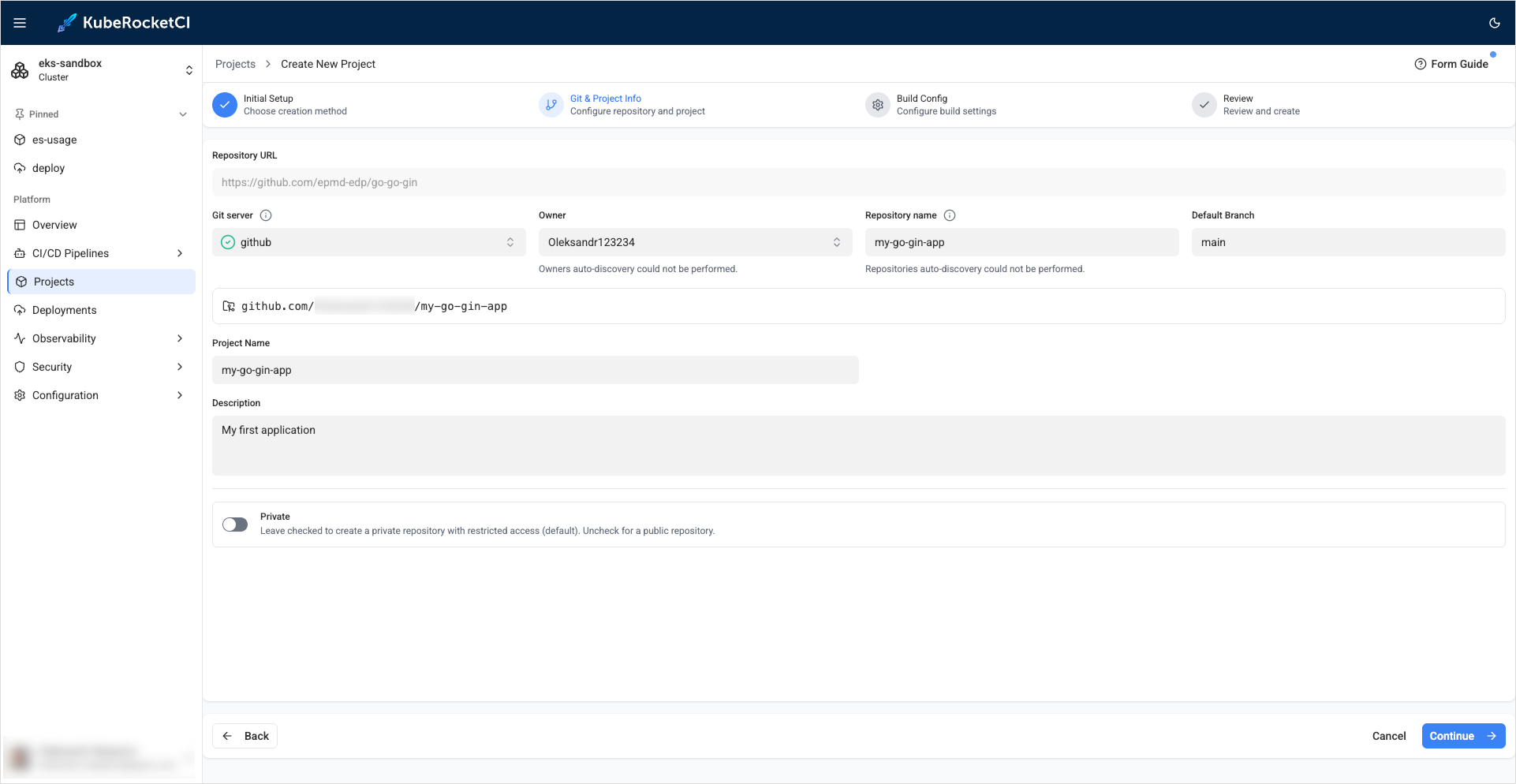
In the Git and Project info stage, define the following values and click Continue:
- Git server:
github - Owner:
<github_account_name> - Repository name:
my-go-gin-app - Default branch:
main - Project name:
my-go-gin-app - Description:
My first application - Private:
disabled
- Git server:
-
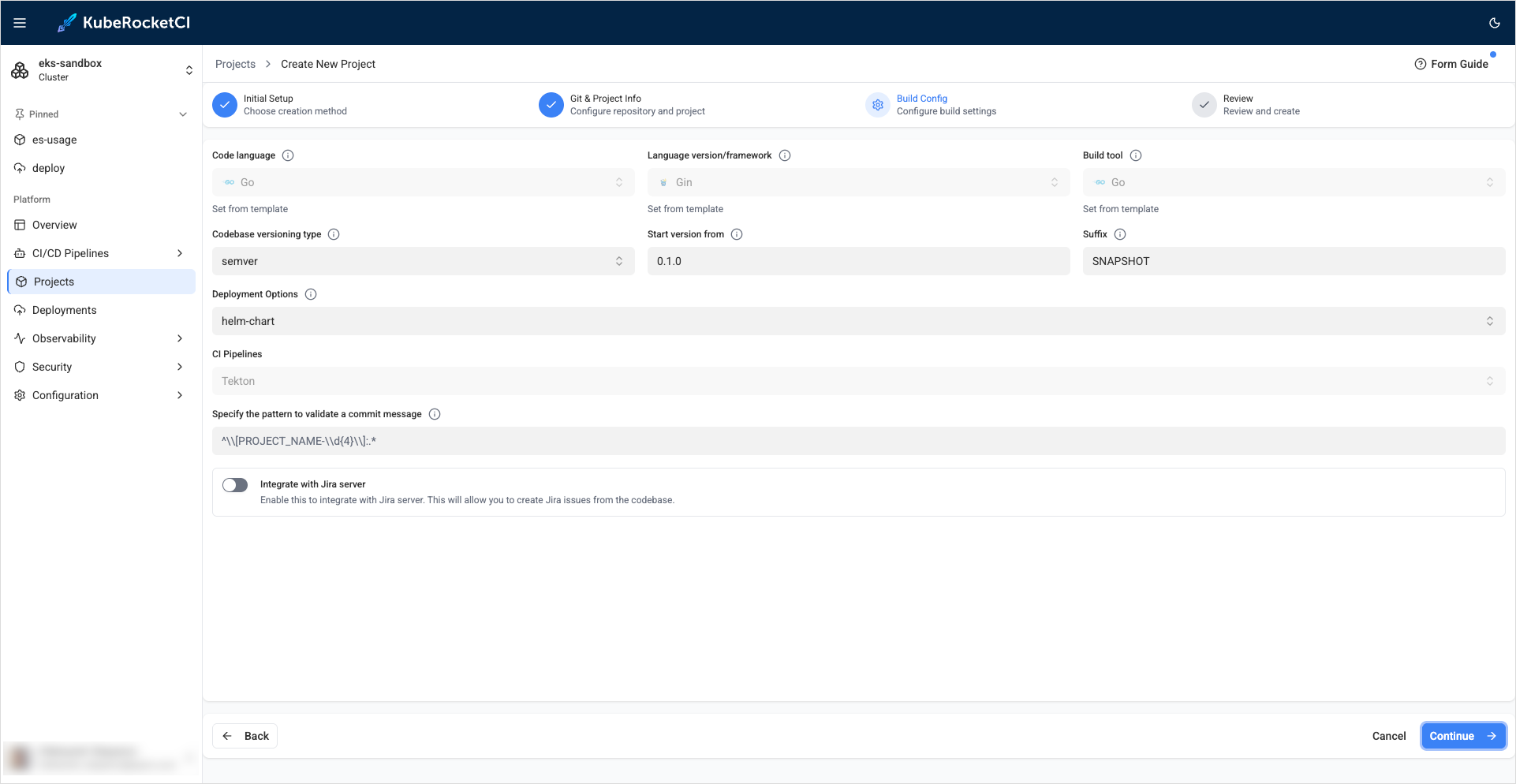
In the Build Config stage, define the following values and click Continue:
- Codebase versioning type:
semver - Start version from:
0.1.0 - Suffix:
SNAPSHOT
- Codebase versioning type:
-
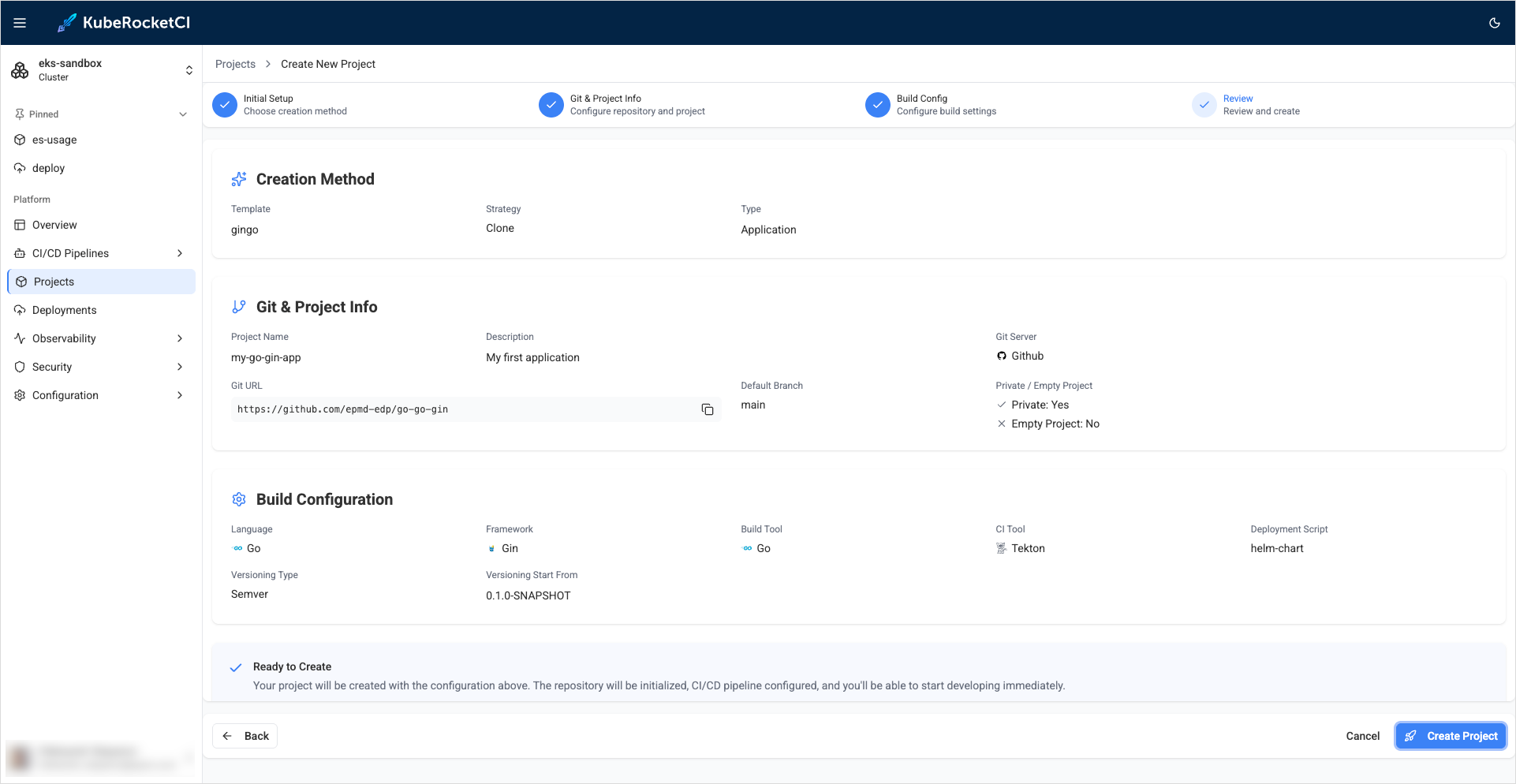
In the Review stage, verify the configuration and click Create Project:
-
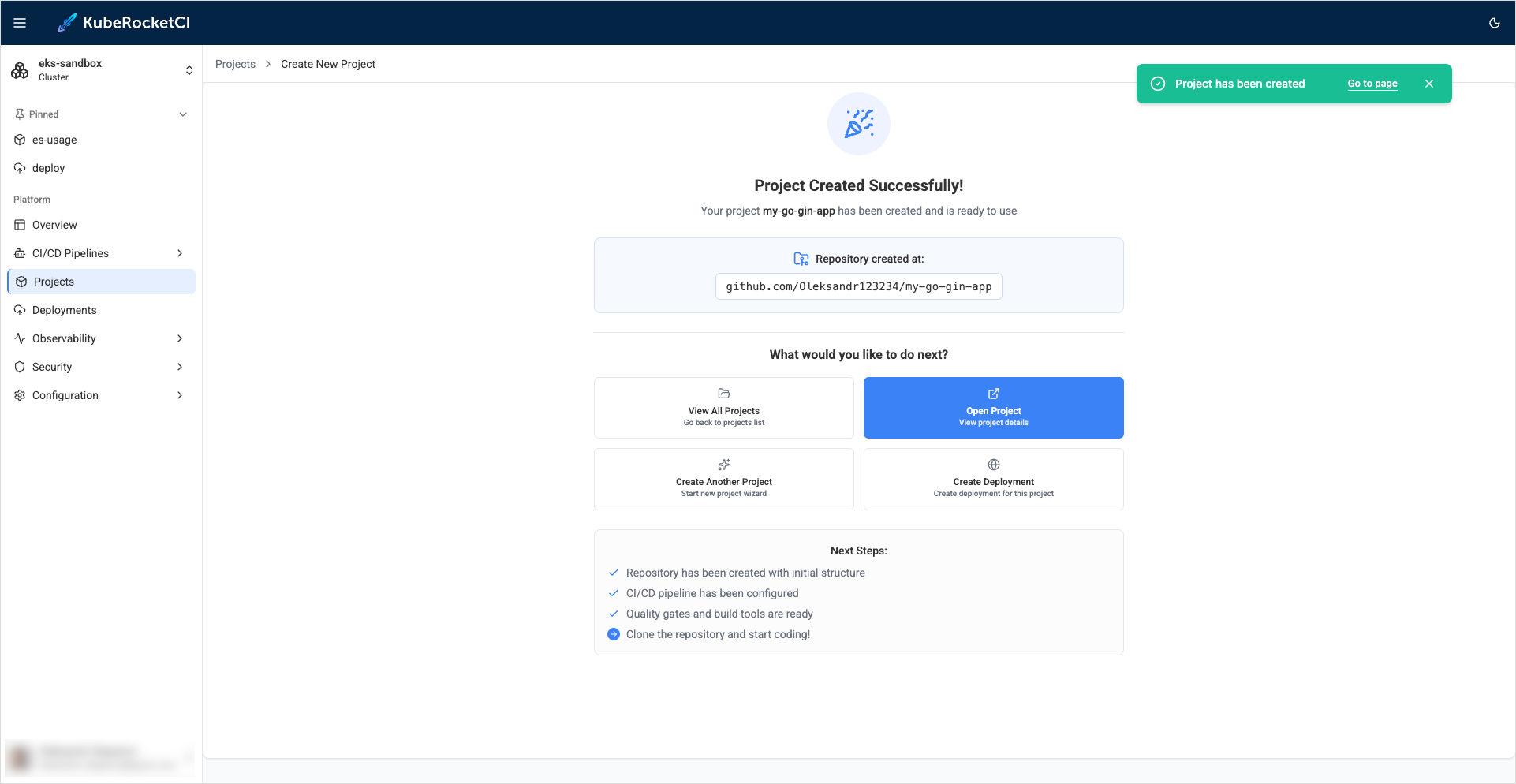
As soon as the codebase is created, navigate to it via the notification at the bottom left corner or click the Components section:
Build Application
Having created the Go application, proceed to build it by performing the following actions:
-
Open SonarCloud page.
-
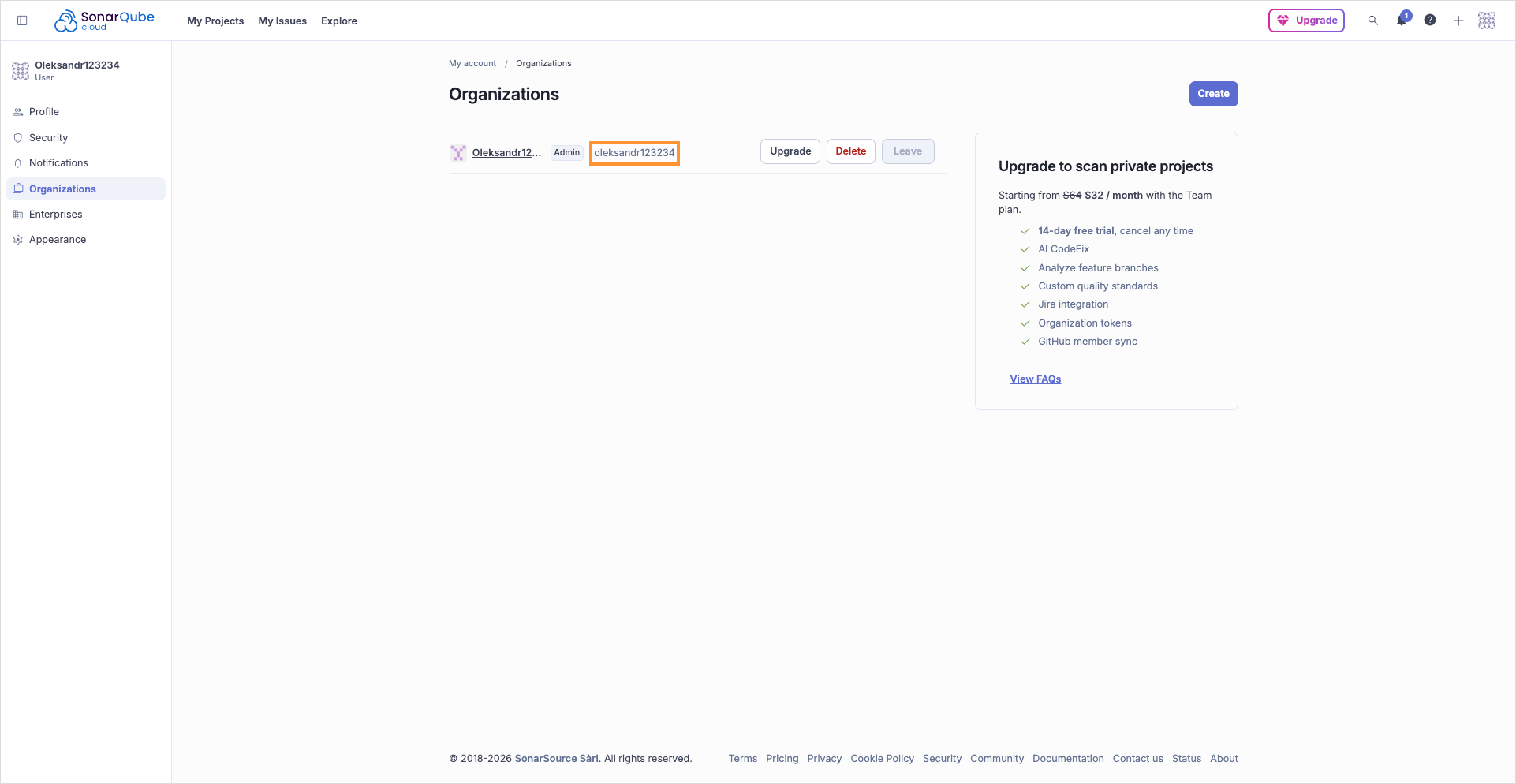
On the account settings, copy your SonarCloud organization key (lowercase identifier used in API and properties):
-
In SonarCloud, open the project and go to Project Information. Copy the Project key exactly as shown (spelling and casing matter). For projects created from GitHub, it is often
<organization-name>_<codebase-name>(for this guide the codebase name ismy-go-gin-app):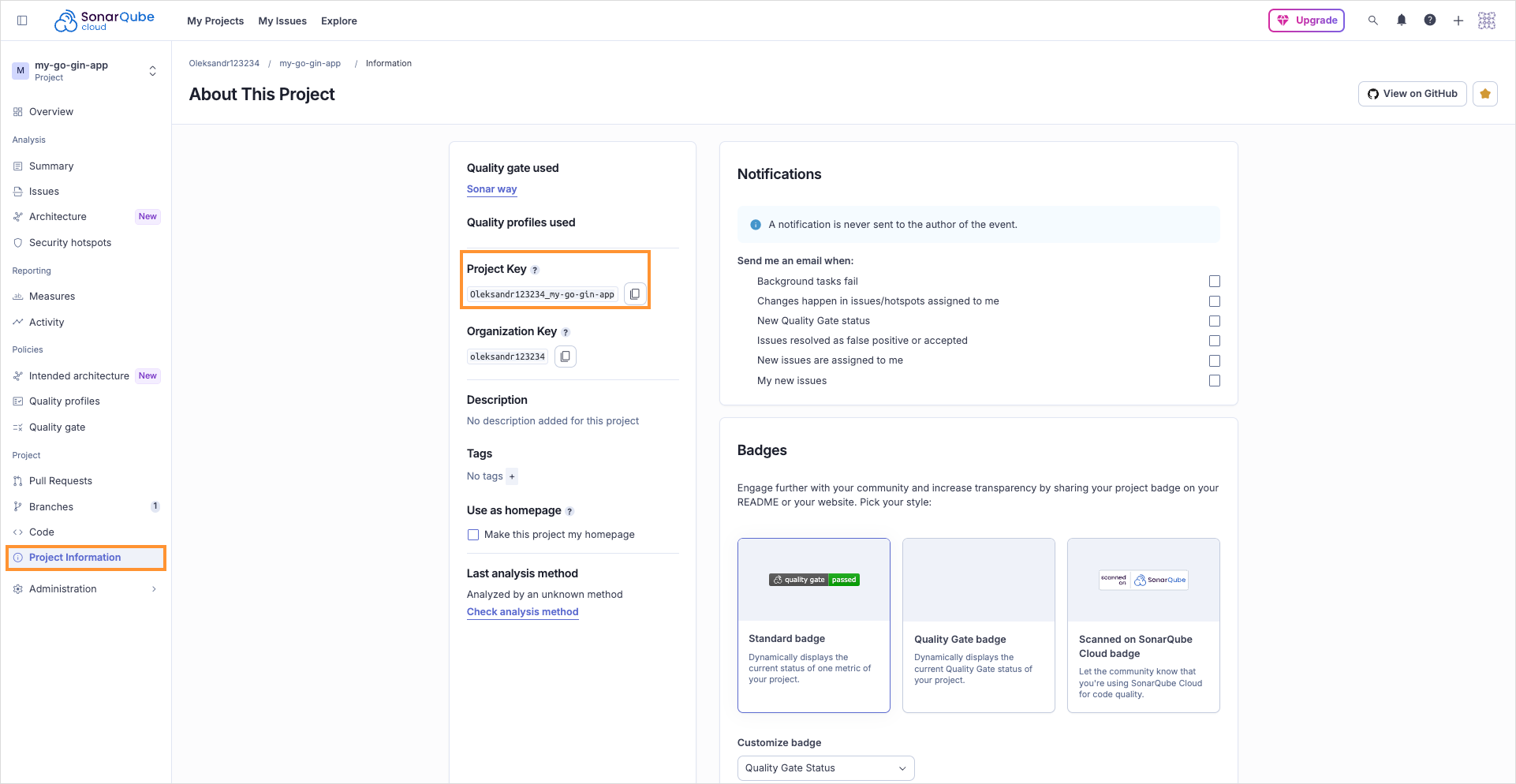
-
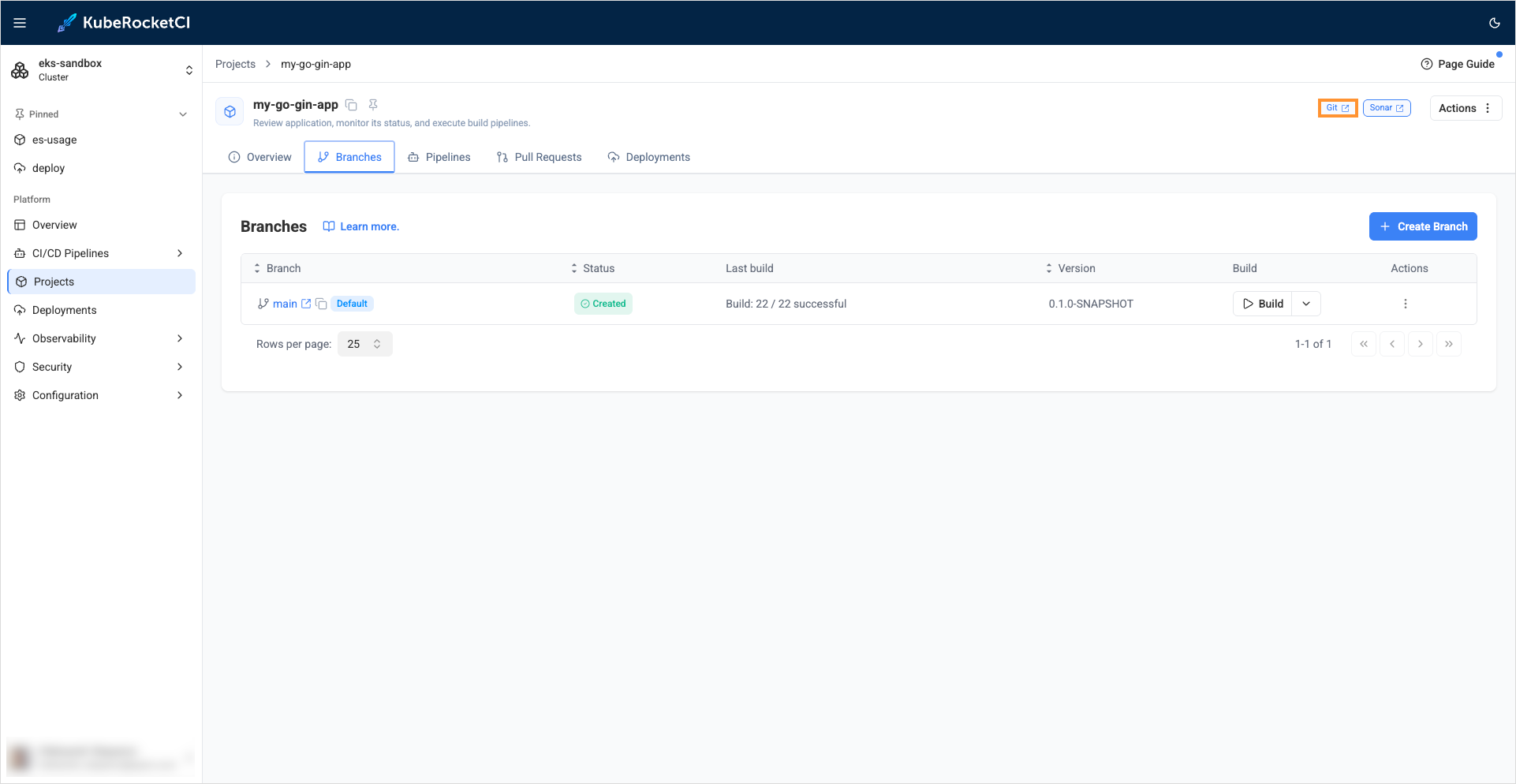
In the component details page, expand the application and click the GIT button:
-
In the repository on the
mainbranch, editsonar-project.properties. Setsonar.projectKeyto the Project key from the previous step,sonar.organizationto your organization key, and keep the rest aligned with the codebase namemy-go-gin-app:sonar.projectKey=<organization-name>_my-go-gin-app
sonar.projectName=my-go-gin-app
sonar.go.coverage.reportPaths=coverage.out
sonar.branch.name=main
sonar.test.inclusions=**/*_test.go
sonar.exclusions=**/cmd/**,**/deploy/**,**/deploy-templates/**,**/*.groovy,**/config/**
sonar.language=go
sonar.organization=<organization-key>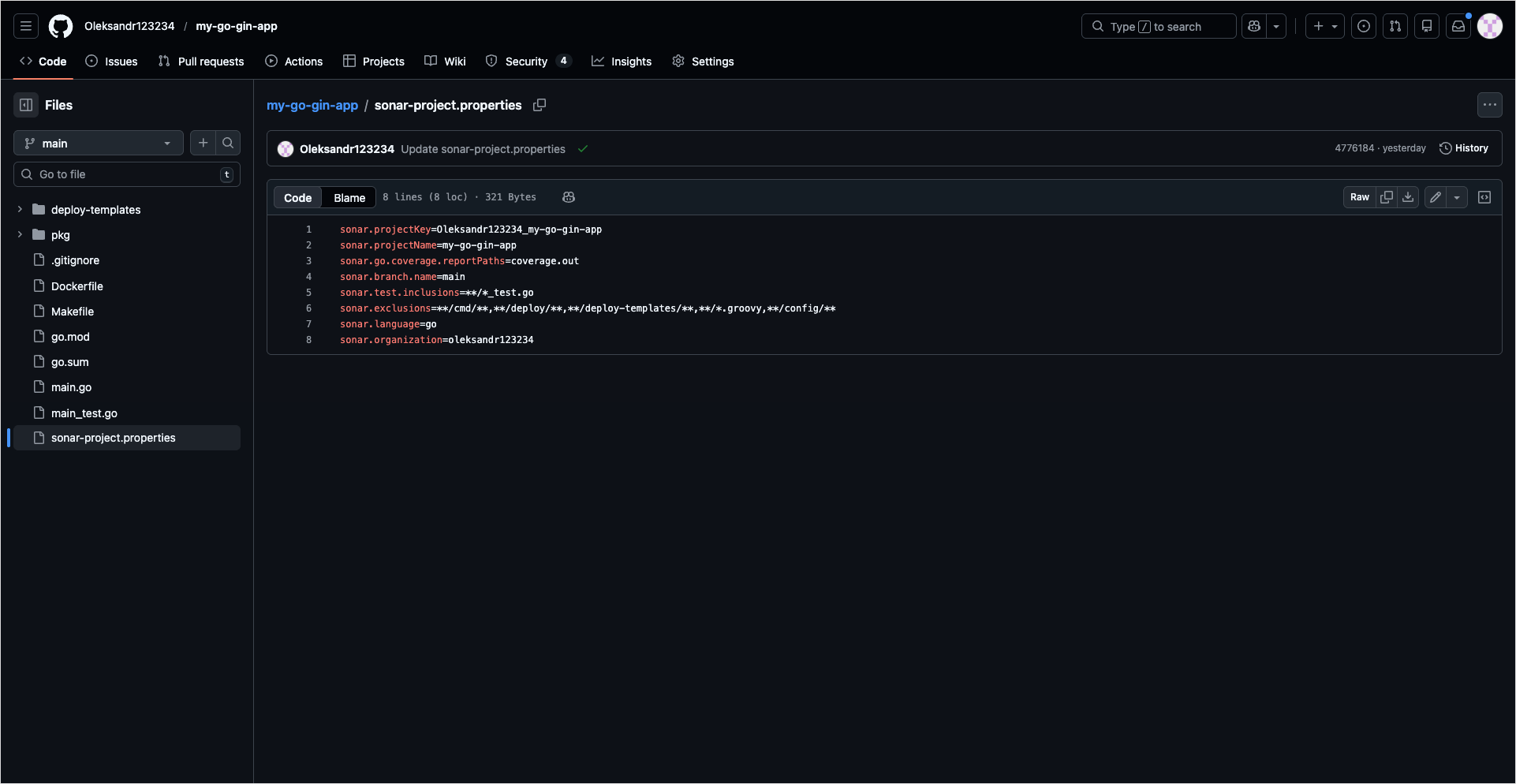 note
noteReplace
<organization-key>with your real organization key from SonarCloud. If SonarCloud shows a Project key that does not follow<organization-key>_my-go-gin-app, use the value from Project Information verbatim forsonar.projectKey. -
Commit and push the
sonar-project.propertieschanges to the main branch. -
Align the Tekton Pipeline with SonarCloud.
The
sonarqube-generalTask overwritessonar.projectKeyfrom the pipeline parameterSONAR_PROJECT_KEY. The build pipeline often setsSONAR_PROJECT_KEYto$(params.CODEBASE_NAME)only (for examplemy-go-gin-app). That value must match the Project key from SonarCloud Project Information (often<organization-key>_my-go-gin-app).Navigate to KubeRocketCI portal -> CI/CD Pipelines -> Pipelines. Search the
github-go-gin-app-build-semverPipeline and click on its name. In the top-right corner of the screen, click Actions -> Edit. Find the task namedsonarand set its parameters as follows.Replace the
sonartask parameter block (or the equivalent fragment) with:- name: sonar
params:
- name: SONAR_PROJECT_KEY
value: "<organization-name>_my-go-gin-app"
- name: SONAR_PROJECT_NAME
value: $(params.CODEBASE_NAME)
- name: branch
value: $(params.git-source-revision)
runAfter:
- build
taskRef:
kind: Task
name: sonarqube-general
workspaces:
- name: source
subPath: source
workspace: shared-workspaceReplace
"<organization-name>_my-go-gin-app"with the exact Project key from SonarCloud (quotes keep YAML valid if the key contains characters such as_):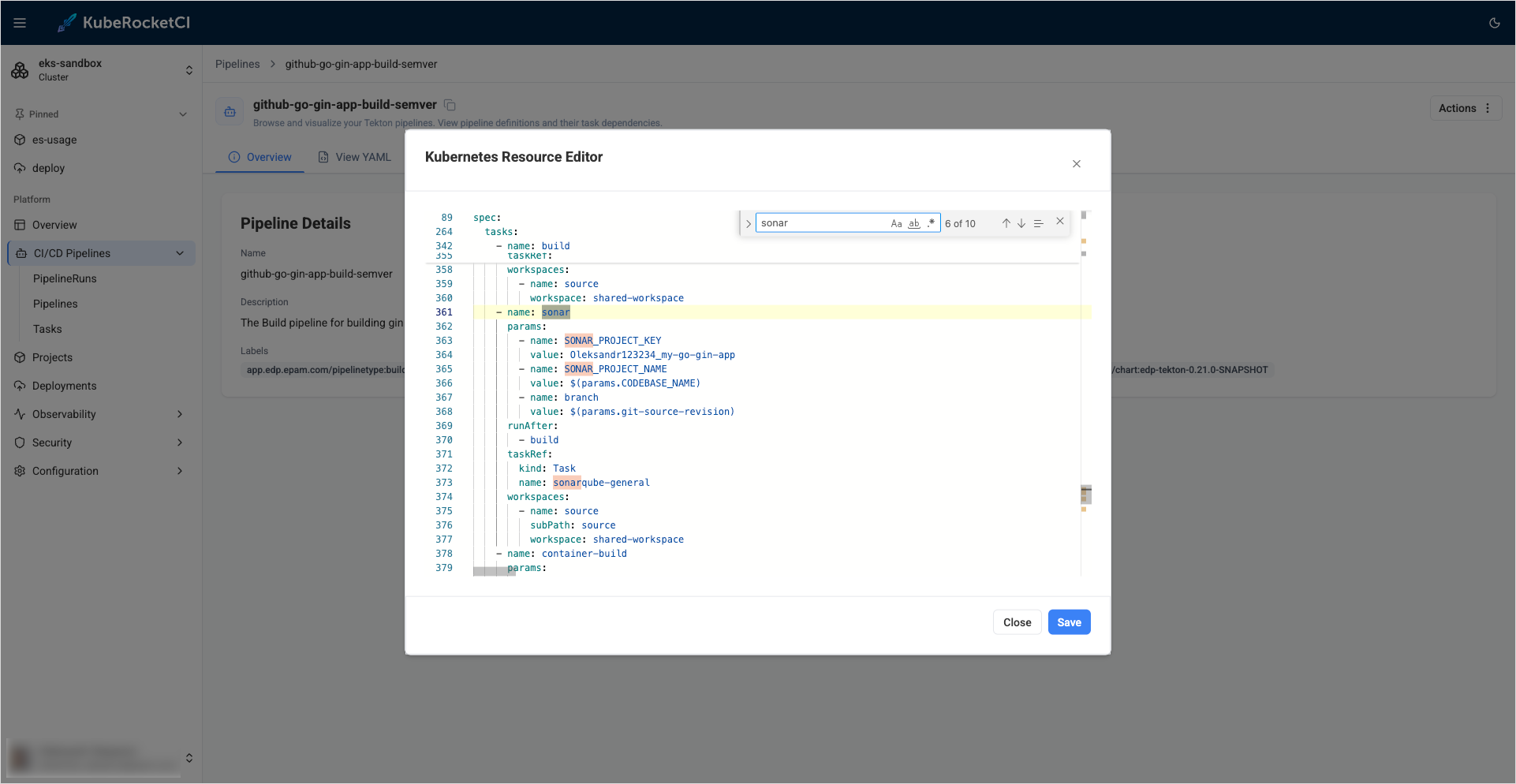 note
noteIf this Pipeline is managed by Helm or Argo CD, apply the same change in the GitOps manifest or chart values so the cluster object is not reverted on sync.
noteIf you use a self-hosted SonarQube instance instead of SonarCloud, follow SonarQube integration; project key rules may differ.
-
Update the
sonarqube-generalTask so the SonarCloud availability check does not treat HTTP 307 (redirect on the site root) as failure.- Navigate to KubeRocketCI portal -> CI/CD Pipelines -> Tasks.
- Search the
sonarqube-generalTask and click on its name. - In the top-right corner of the screen, click Actions -> Edit.
- In the Tekton Task named
sonarqube-general, open the stepprepare-project. - Find the check that requests
${SONAR_HOST_URL}withcurland replace the availability logic with a GET to/api/system/status, for example:
SONAR_STATUS=$(curl -s -o /dev/null -w "%{http_code}" "${SONAR_HOST_URL}/api/system/status") || SONAR_STATUS="503"

if [[ "$SONAR_STATUS" != "200" ]]; then
  echo -e "SonarQube is not available\nPlease check the connection to SonarQube"
  exit 1
fi
Remove or do not use a bare
HEAD/GETagainst${SONAR_HOST_URL}alone without following redirects, as SonarCloud can respond with 307 and the step would exit incorrectly.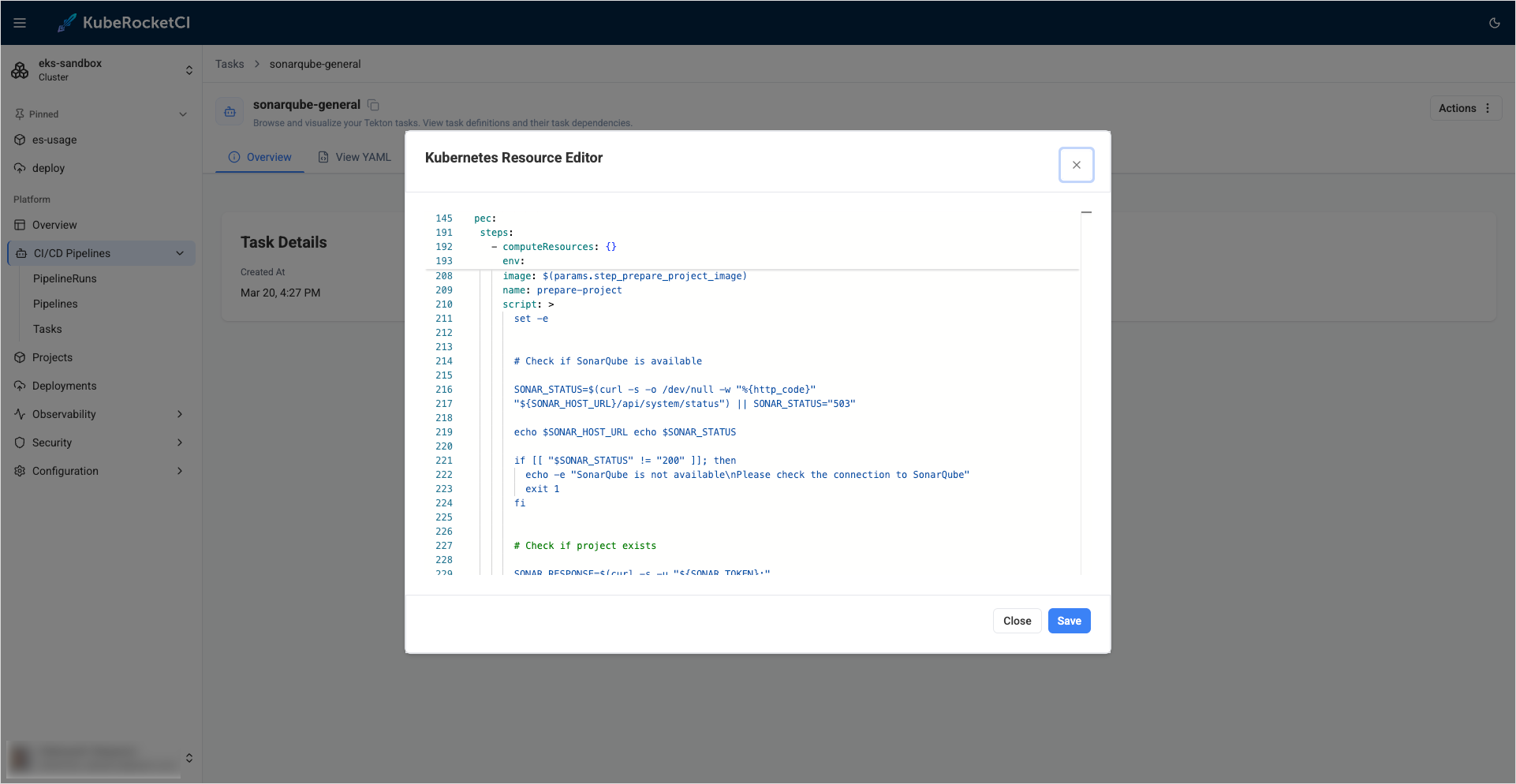 note
noteCluster administrators usually patch this Task once per environment. If your platform already ships the
/api/system/statuscheck, you can skip this step. -
Ensure Automatic Analysis is disabled for this project in SonarCloud when using CI scans (see Integrate SonarQube).
-
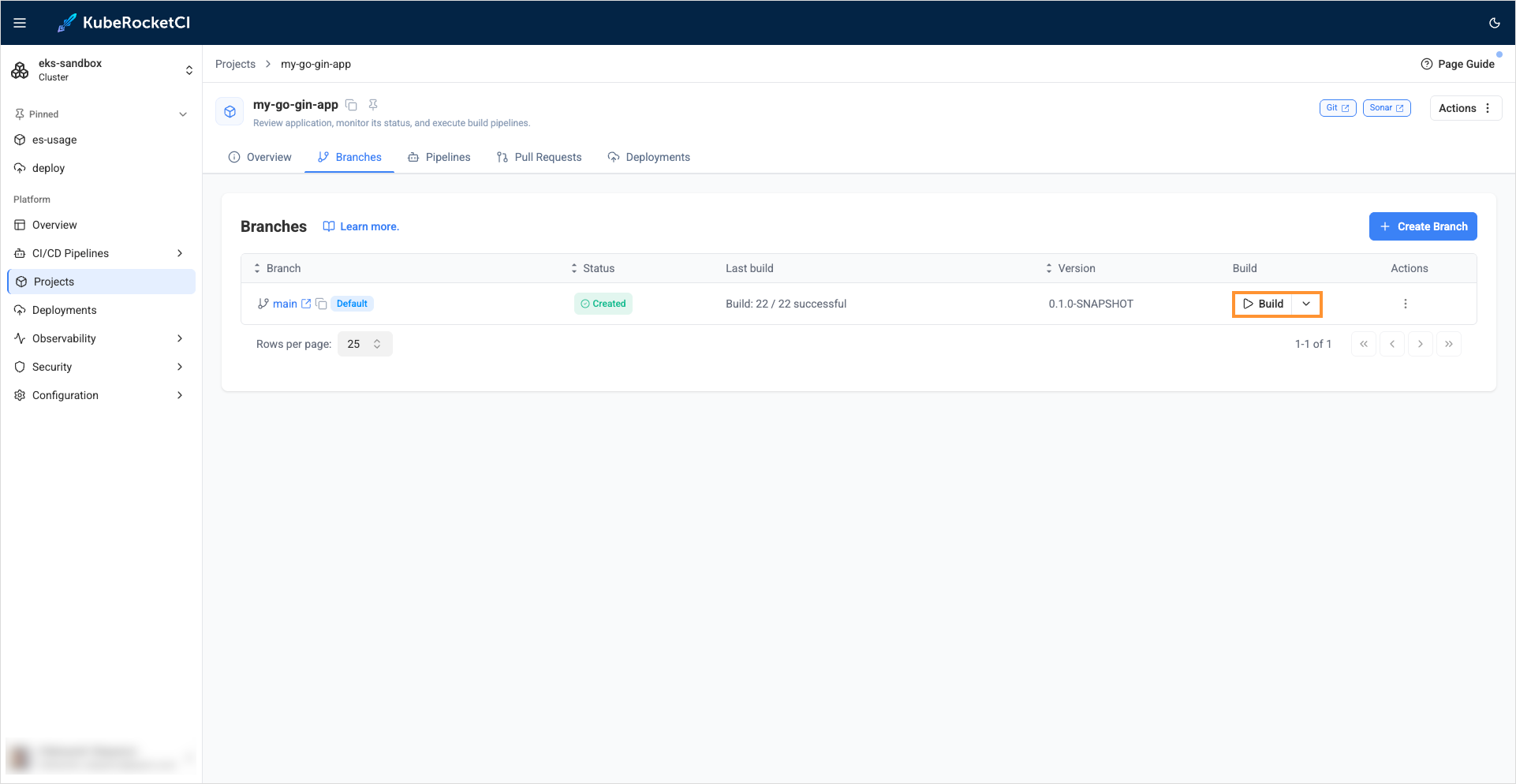
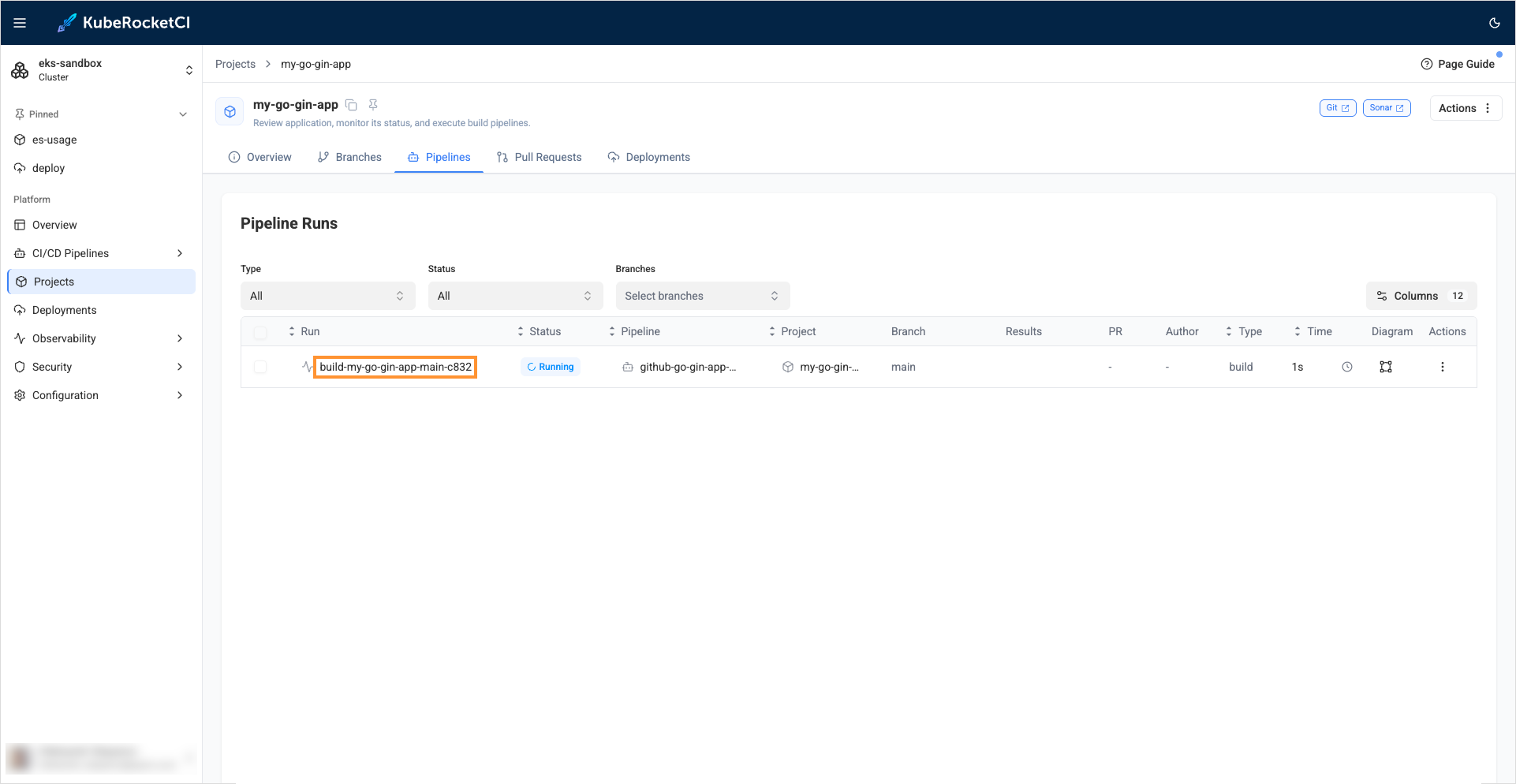
In the Project details page, click Build:
-
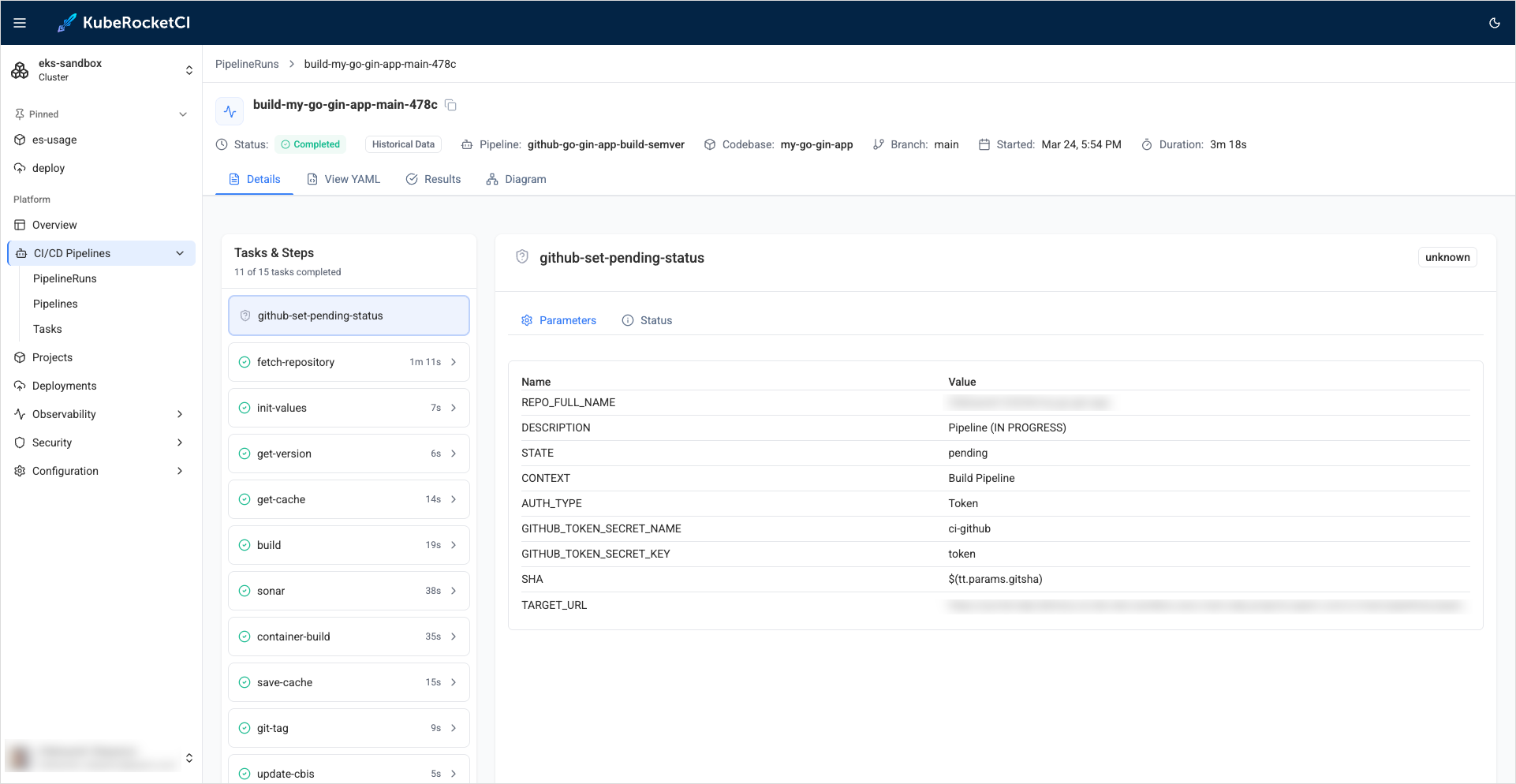
Open the PipelineRun and wait until it finishes. Many small starter projects pass on the first run:
 note
noteAfter the first analysis, SonarCloud may adjust Quality Gate behavior for the project. If the
sonartask fails with Quality Gate failed even though the scan completed, address the reported issues or review the Quality Gate, then re-run the build pipeline. A second run is not always required.
Build pipelines in KubeRocketCI are specifically designed to generate an executable image of an application. Once the build process is complete, the resulting image can be deployed and run in a target environment.
Now that you have successfully built an application, the next step is to create an environment for deployment. In order to deploy the application, you will need to install and integrate Argo CD. To learn how to install and integrate Argo CD, please refer to the Integrate Argo CD page.