Deploy Application
Now, let's proceed to deploy our first application. This page offers detailed instructions on how to create an environment and deploy the application within it.
Create GitOps Repository
As a prerequisite, create a GitOps repository in your GitHub account. KubeRocketCI Portal adheres to the GitOps approach when working with environments. In a GitOps repository, values are saved to redefine the default behavior (parameters) of deployment for each environment. The creation of a GitOps repository involves the following two steps:
-
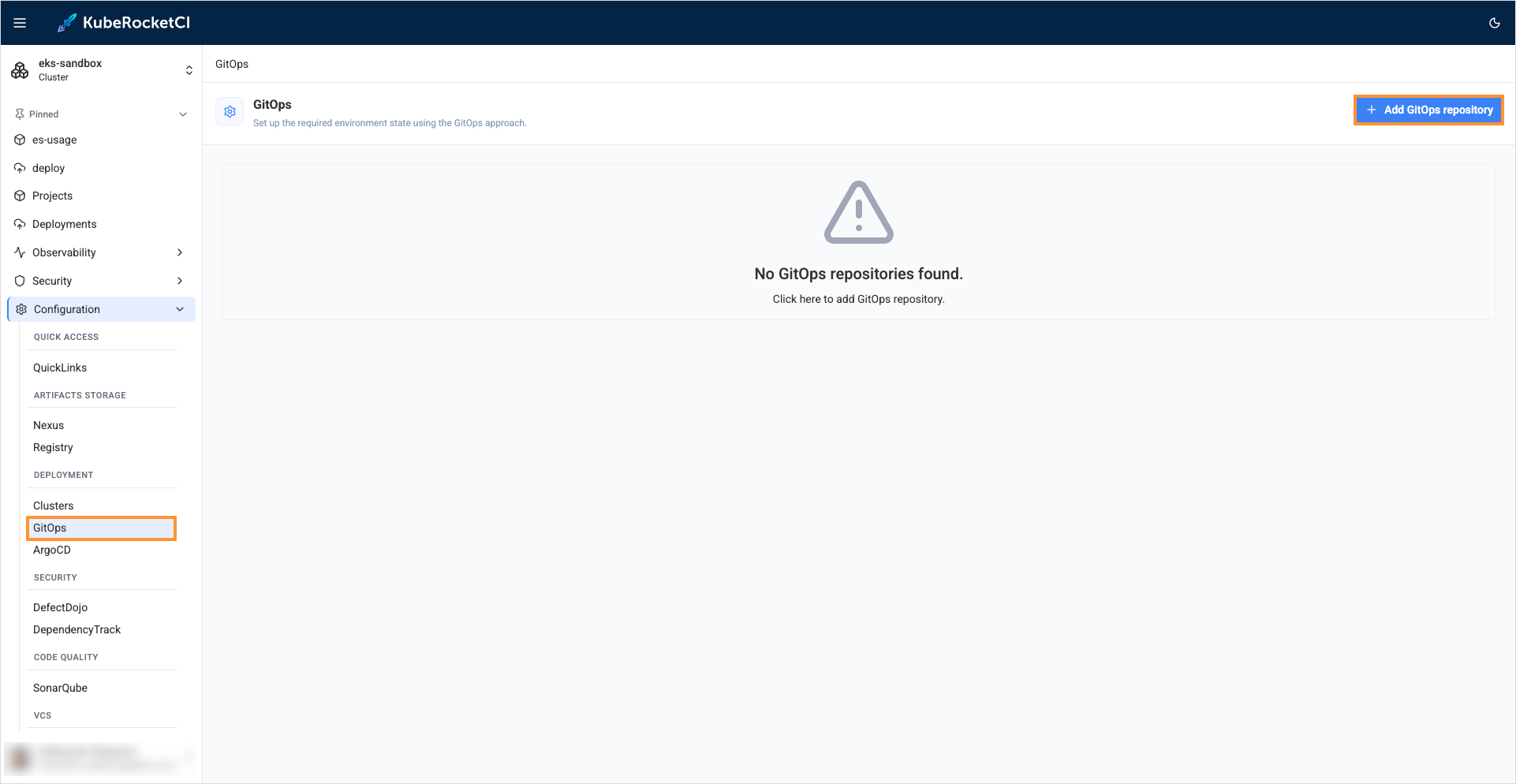
In the UI Portal, navigate to Configuration -> Deployment -> GitOps and click + Add GitOps repository:
-
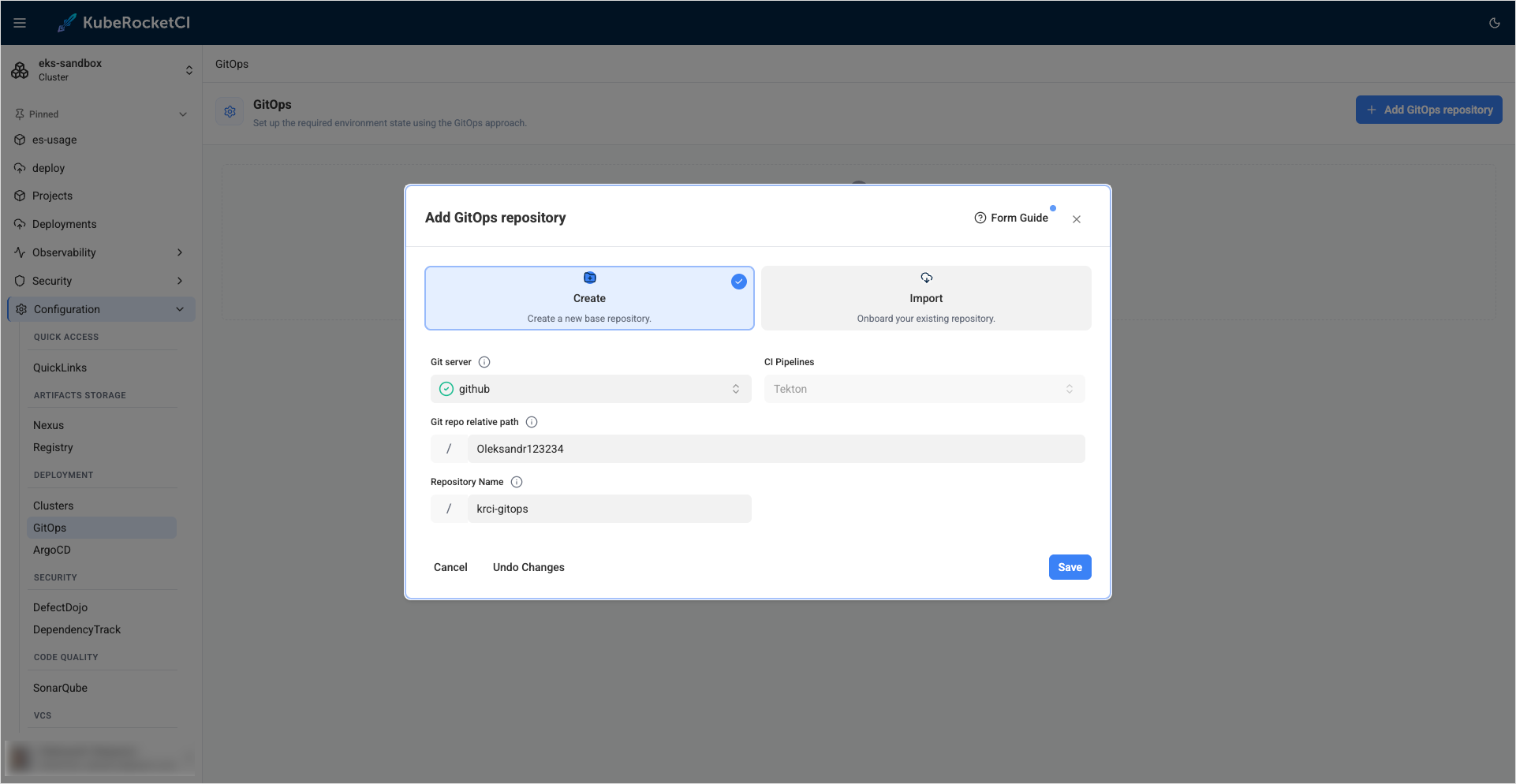
Define the following values and click Save:
- Git server:
github - Git repo relative path:
github_account_name - Repository Name:
edp-gitops
- Git server:
Create Deployment Flow
To create a deployment flow, follow the steps below:
-
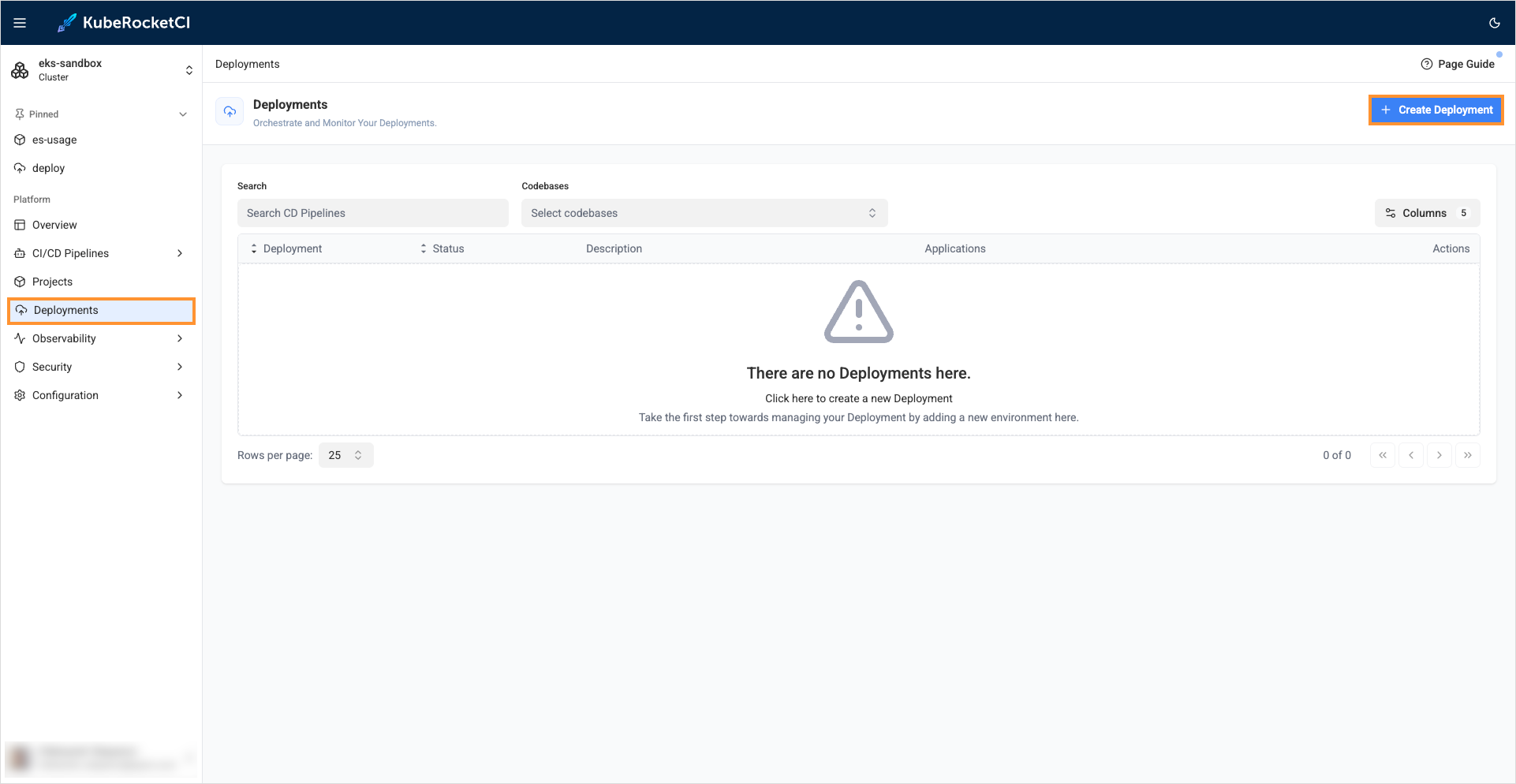
In the KubeRocketCI portal, navigate to Deployments and click the + Create deployment button:
-
In the Applications stage, select
my-go-gin-appapplication,mainbranch, and click Continue ->: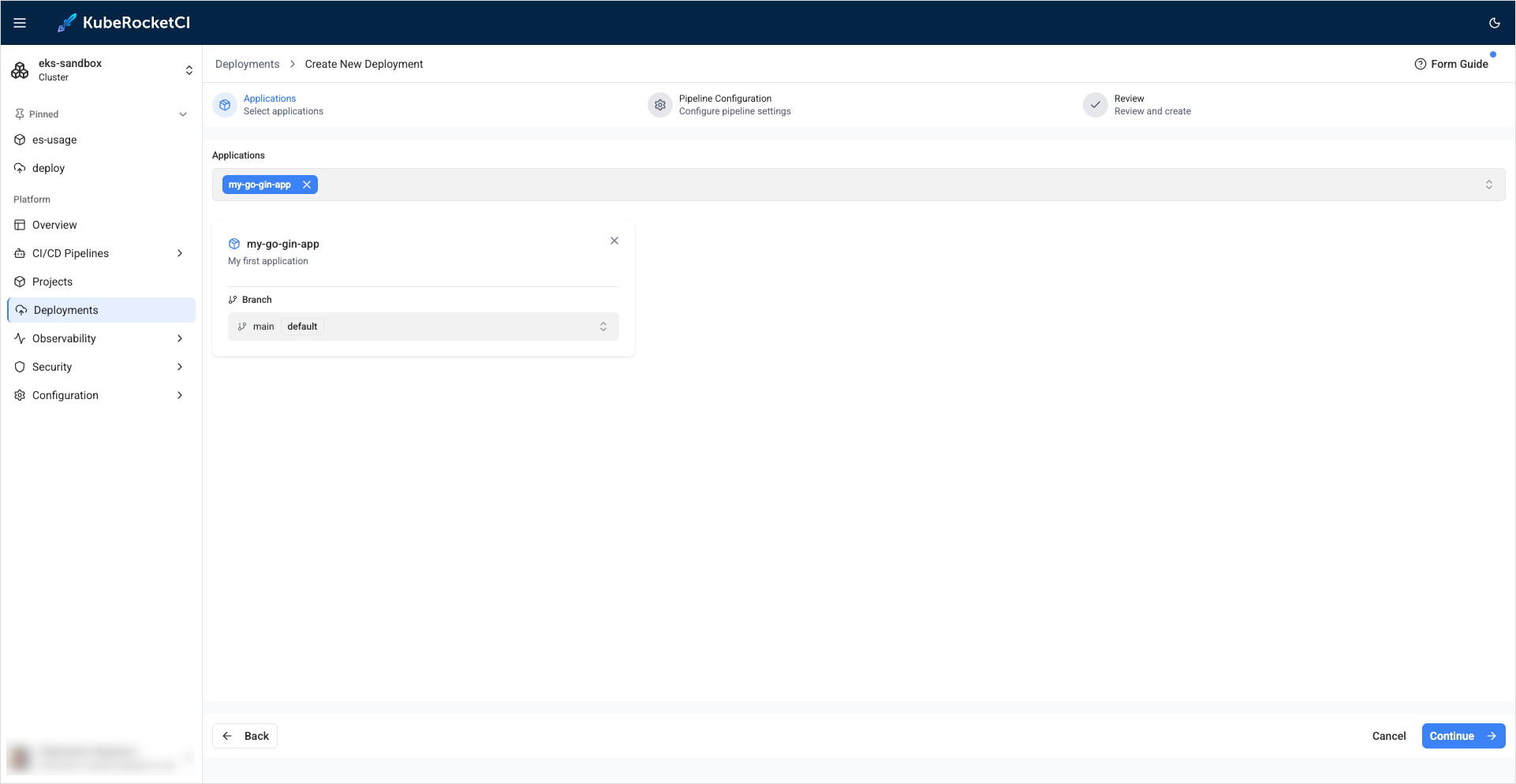
-
In the Pipeline configuration tab, fill in the required fields and click Continue ->:
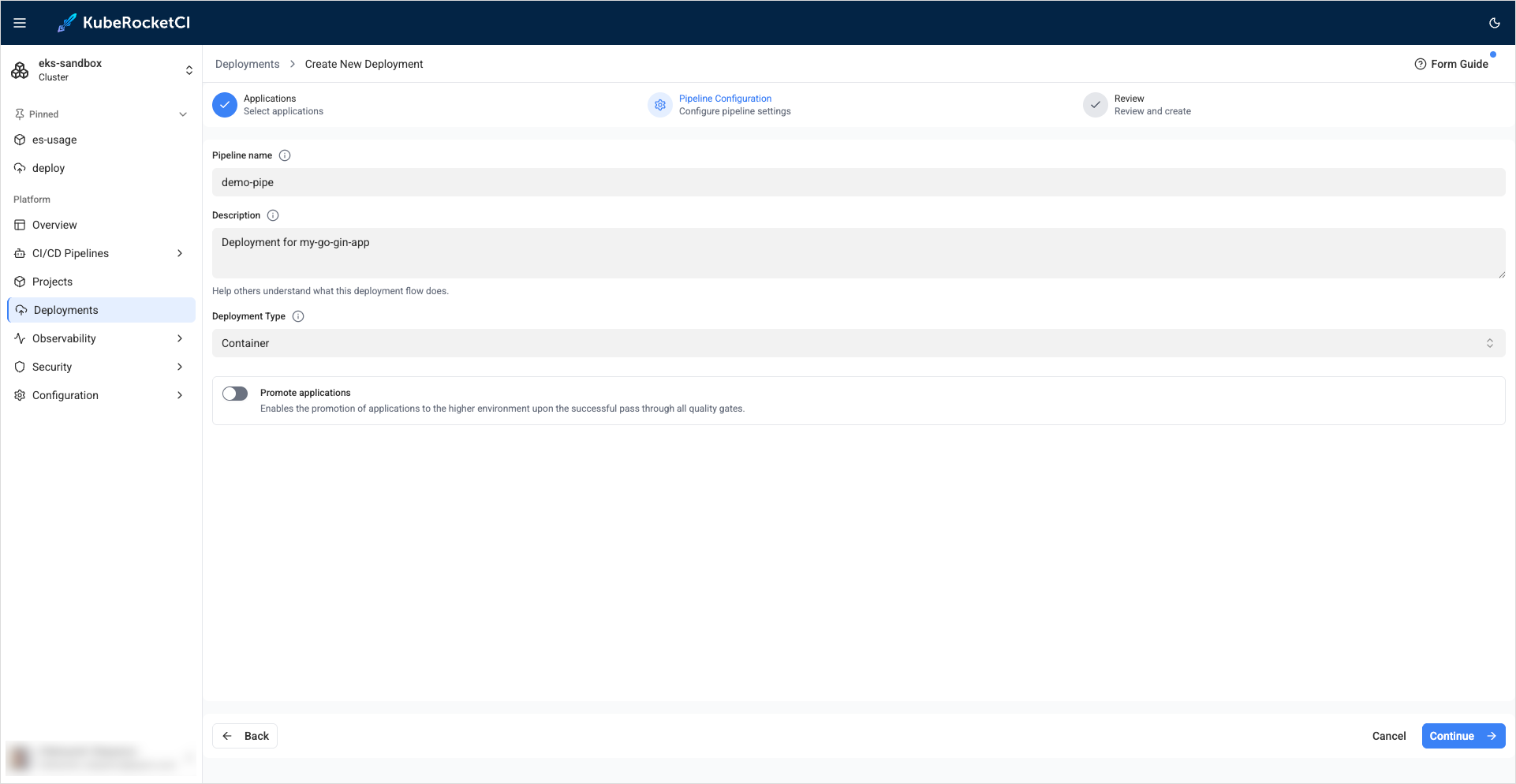
-
In the Review and create tab, verify the Deployment configuration and click Create Deployment:
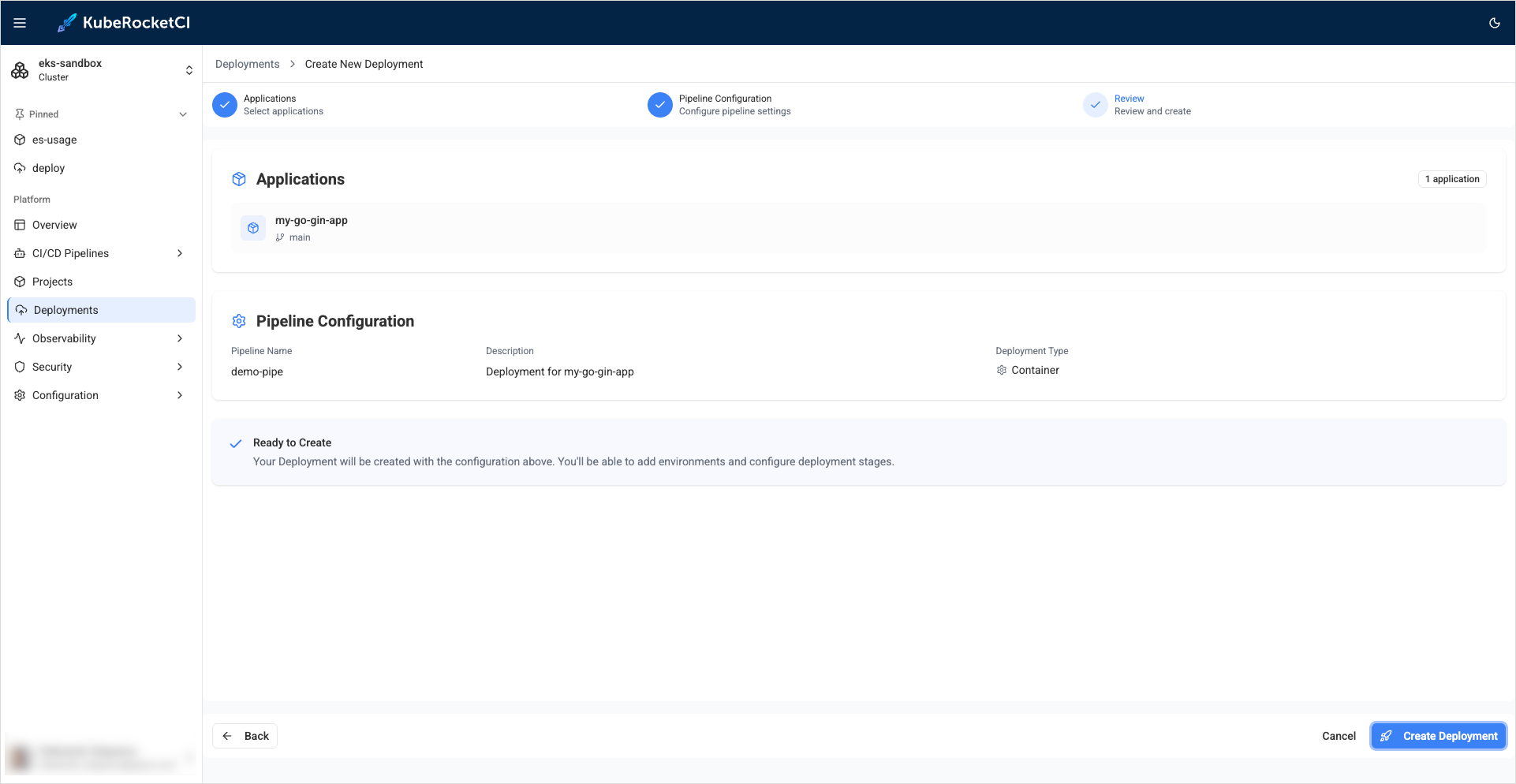
-
Once the Deployment is created, click the Go to Deployment button on the congratulations window.
-
In the Deployment details page, click the Create environment button:
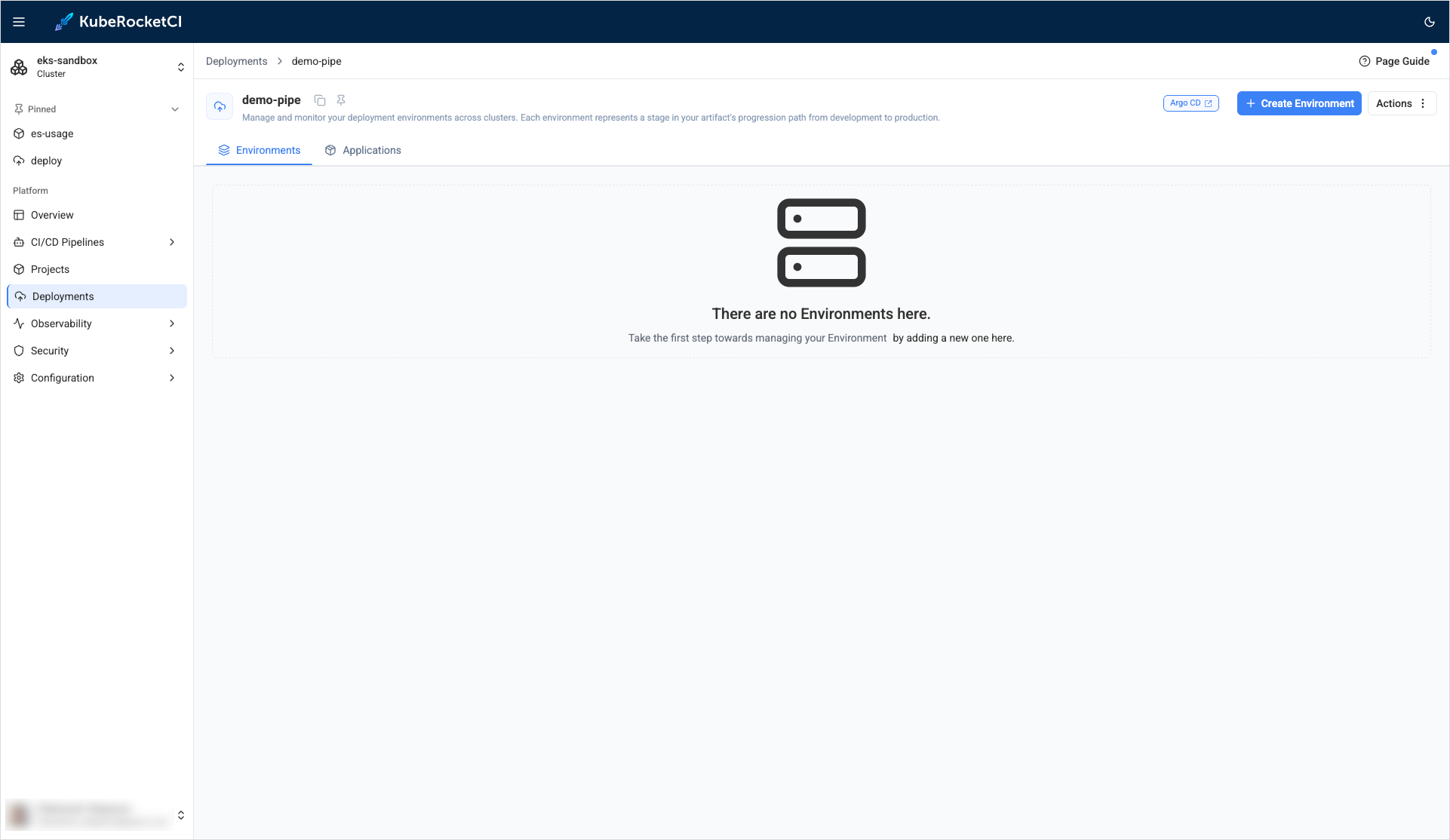
-
On the Basic configuration stage, define the following values and click Continue ->:
- Cluster:
in-cluster - Environment name:
dev - Namespace:
edp-my-go-gin-app-dev - Description:
Development stage
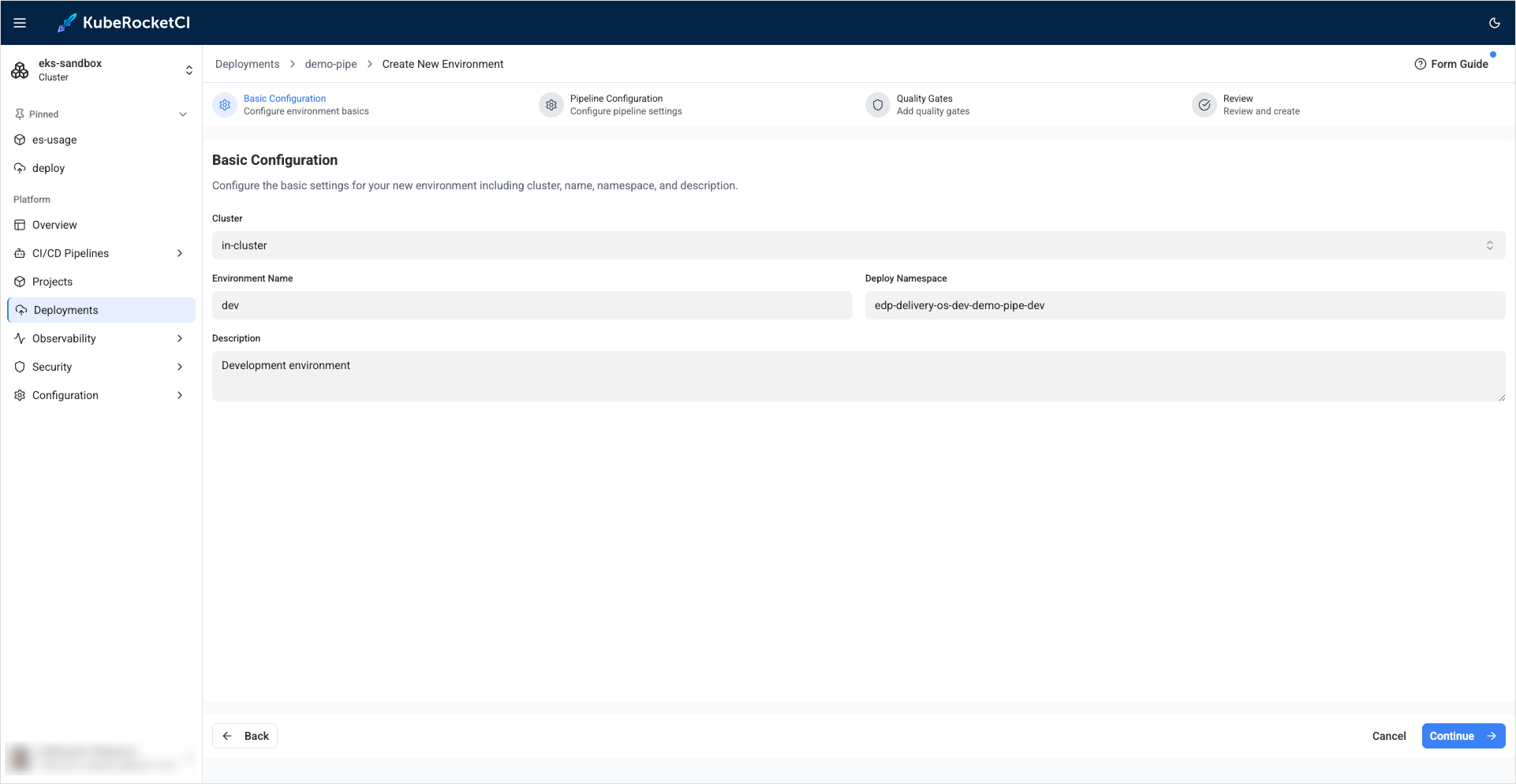
- Cluster:
-
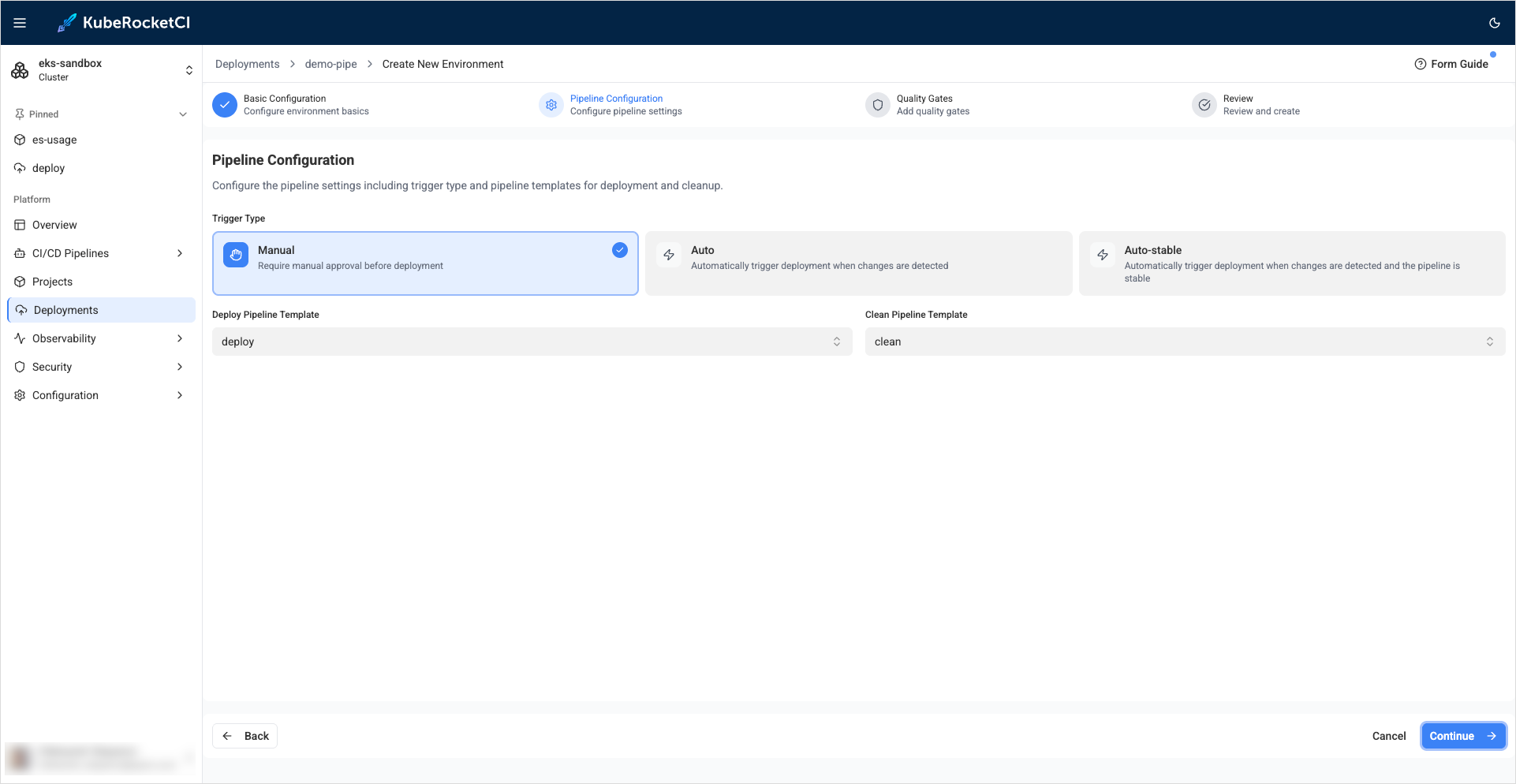
On the Pipeline configuration stage, define the following values and click Next:
- Trigger type:
Manual - Deploy Pipeline template:
deploy - Clean Pipeline template:
clean
- Trigger type:
-
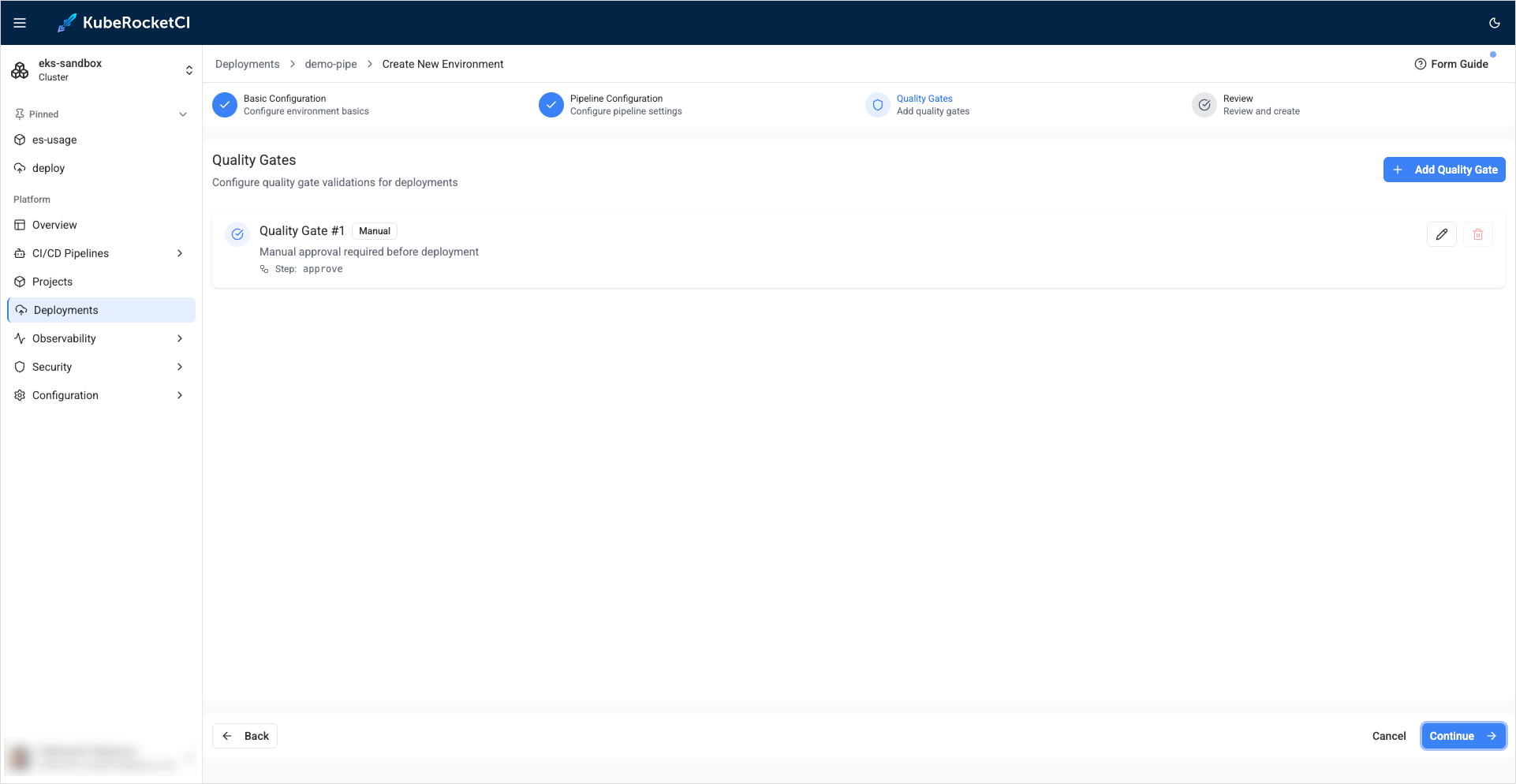
On the Add quality gates tab, define the quality gates and click Create:
- Quality gate type:
Manual - Step name:
dev
- Quality gate type:
-
On the congratulations window, click Open environment:
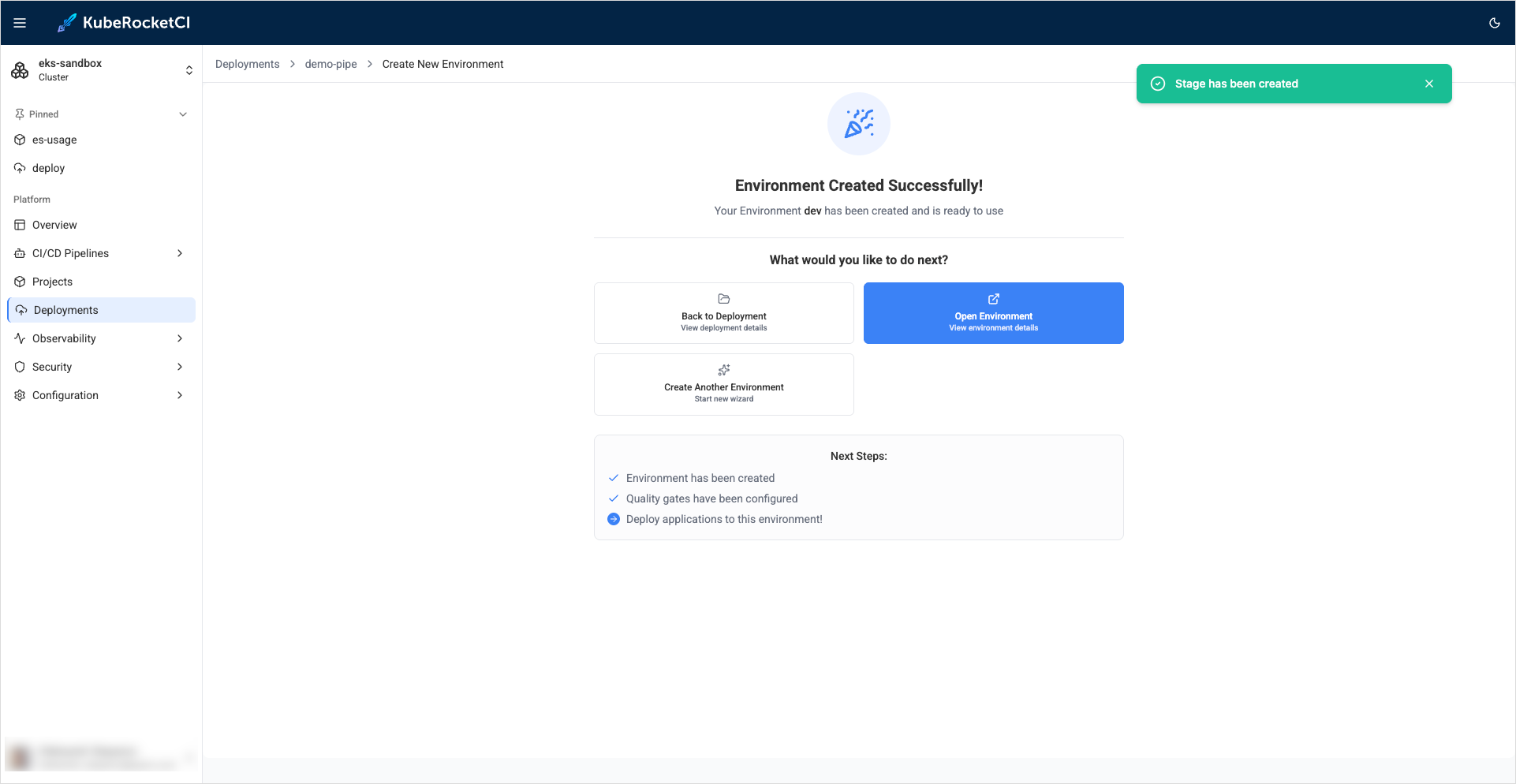
The created deployment flow will be added to the deployment flows list.
Application Deployment
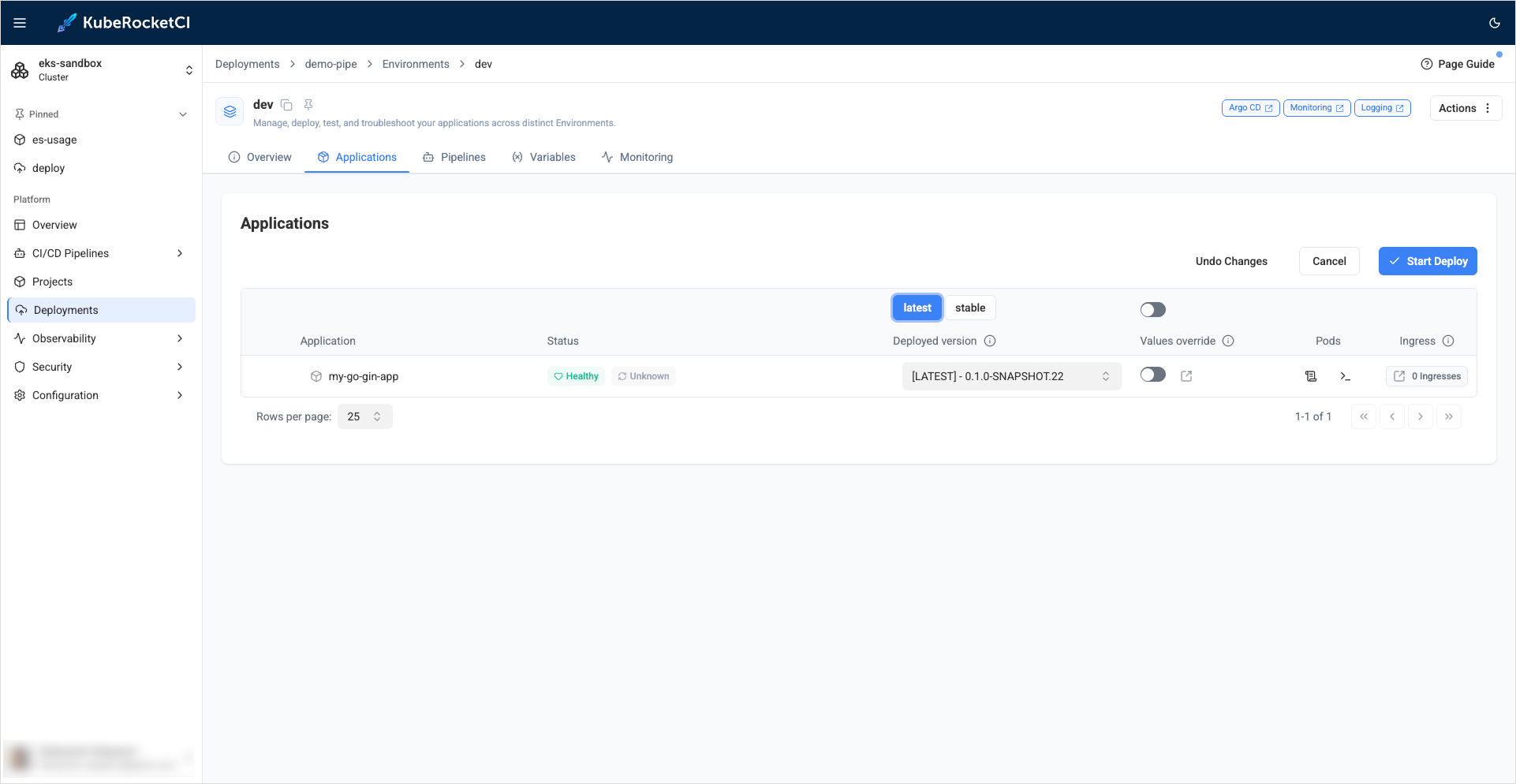
Once you enter the environment details page, proceed to deploy the application:
-
Click the Configure deploy button.
-
Select the Image stream version.
-
Click the Start deploy button:
-
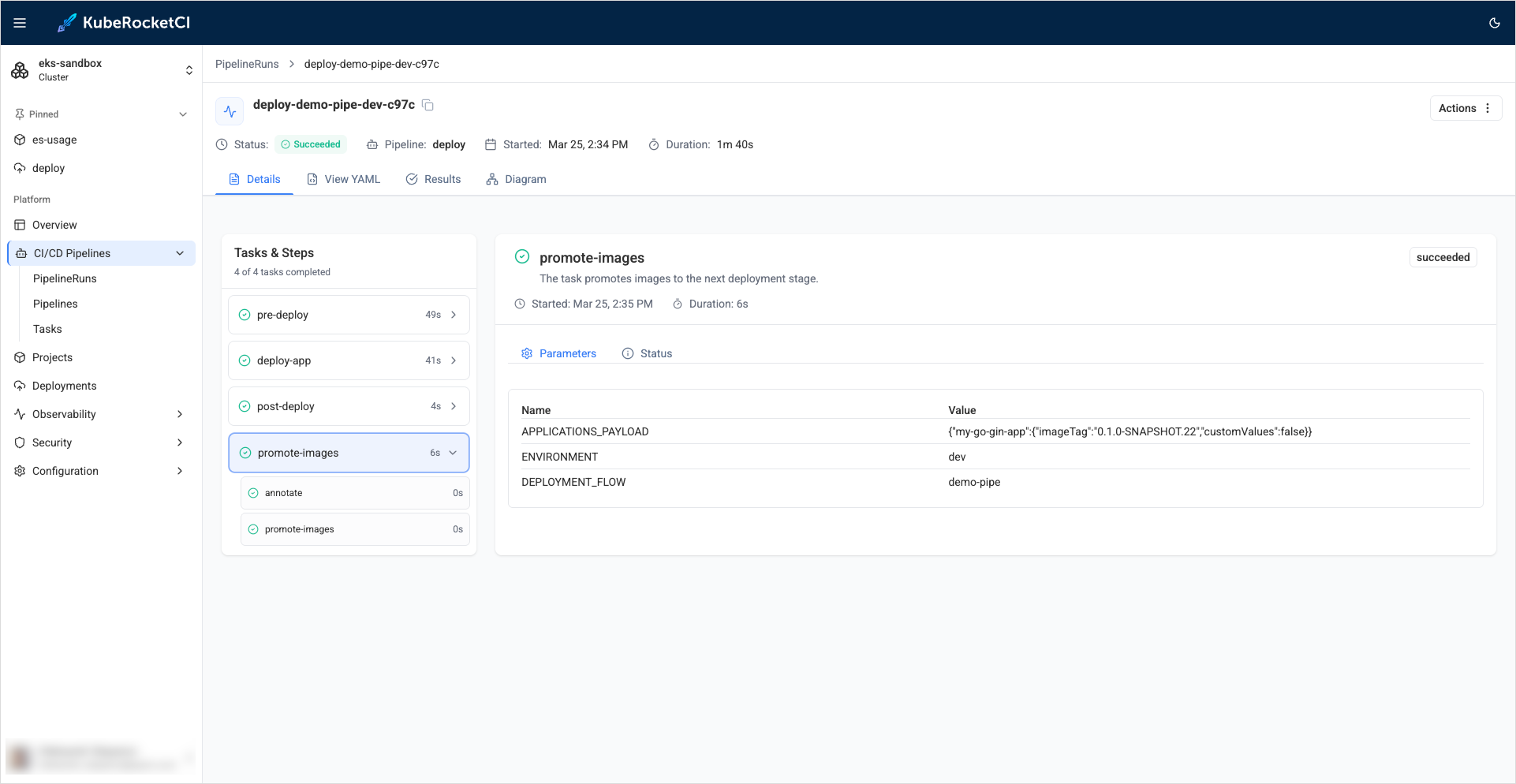
Watch the PipelineRun completion status by navigating to Pipelines tab and clicking the PipelineRun name:
Congratulations on completing the Quick Start guide! We hope you found this journey enjoyable.
Now that you have a good understanding of how KubeRocketCI works, you can further enhance its capabilities by integrating it with Nexus. Additionally, explore other functionalities detailed in our Use Cases section. If you're eager to unlock the full potential of KubeRocketCI, navigate to the Operator Guide to fine-tune your KubeRocketCI for your specific requirements!